More Features of the Core SDK
This section discusses features of the Core SDK above and beyond simple display and creation of maps.
Coordinate Systems
The class TSLCoordinateSystem encapsulates the transforms used to create a map. A coordinate providing layer provides a TSLCoordinateSystem to allow the user to convert between latitude/longitude, Map Units (MU) and TMCs. A TSLCoordinateSystem can be created by the developer and used to convert between different Map Projections.
More information on Coordinate Systems and Map Projections can be found in the “MapLink Studio Users Guide” and Help.
Transverse Mercator
EPSG have changed the formula used for Transverse Mercator while retaining the EPSG IDs for the affected Coordinate Systems that use Transverse Mercator.
The original formula “USGS Snyder” and “JHS” formulas produce similar results in a +-4 degree band around the central longitude. Outside this band the results diverge. The JHS algorithm is more accurate out to +-40 degrees.
EPSG recommend that the two formulas are not mixed.
EPSG recommend the use of the JHS formula.
The Snyder formula was used in MapLink 7.5 and older versions. Both formulas are available in MapLink 8.0 and newer.
To address the EPSG change to the Transverse Mercator several changes have been made to tsltransforms.dat that may affect an application. The changes are outlined below:
-
MapLink coordinate system IDs in the range [-5000..-9000] use the Transverse Mercator JHS projection algorithm.
-
IDs in the range [-1..-4900] use the original USGS Snyder Transverse Mercator projection algorithm.
-
The EPSG ID in the case of both Coordinate Systems are the same.
-
The NAME has been updated to contain ‘(Snyder)’ or ‘(JHS)’ to distinguish the algorithm used.
Where:
ID is the value used in TSLCoordinateSystem::findByID() and returned by id().
NAME is the value used by TSLCoordinateSystem::findByName() and returned by name().
The method TSLCoordinateSystem::findByName() functionality has changed slightly.
When looking up a Coordinate System that uses Transverse Mercator projection the method expects one of two forms to be used, for example:
-
“UTM (WGS84) Zone 1 North (Snyder)”
-
“UTM (WGS84) Zone 1 North (JHS)”
For backwards compatibility the findByName() method will return the original Snyder Coordinate System if “(Snyder)” or “(JHS)” is missing from the name being searched for. In this case a warning will be placed on the TSLThreadedErrorStack.
The method TSLCoordianteSystem::findByEPSG() may not work as expected, for example;
const TSLCoordinateSystem *coordSystem = TSLCoordianteSystem::findByEPSG(27700);
Returns the OSGB coordinate system using the Snyder Transverse Mercator formula. For the new formula you need to do the following:
const TSLCoordinateSystem *coordSystems[2];

int numberFound = TSLCoordianteSystem::findByEPSG(27700, coordSystems, 2);
You would need to check the numberFound variable and then validate the name of each returned TSLCoordinateSystem to see if it was the Snyder or JHS version. You could use the MapLink IDs as these are unique.
TSLCoordinateConvertor
The class TSLCoordinateConvertor can be used to convert between latitude/longitude, GARS, MGRS, UTM and UPS.
Additionally this class contains methods that do the following conversions:
-
Great Circle
-
Vincenty
-
Rhumbline
-
Geocentric
-
Geodetic
-
Topocentric
Decluttering
Decluttering is the temporary hiding of features. The features still exist in the map or Data Layer but are not drawn. Applications often use decluttering, under user control, to help prevent information overload. It is applied on the TSLDrawingSurface, thus allowing the same Data Layer to be displayed differently on two different surfaces - e.g. in an overview pane and the main window.
A Drawing Surface contains a list of decluttering settings for each Data Layer in the surface, and an additional decluttering list that applies to all Data Layers (sometimes referred to as the global decluttering list). The decluttering list for each Data Layer inherits the contents of the global decluttering list, thus allowing decluttering to be easily set up for several Data Layers in one method call, while still allowing decluttering settings to be overridden on a per-Data Layer basis.
Declutter Feature Name and ID
The declutter status is configured on a per-feature basis using the Feature Name. The Feature Names are hierarchical, usually as defined using the Feature Subclassing configuration in MapLink Studio. Each level of the hierarchy is separated by a period in the Feature Name. For example, a map may contain the following features:
vpf.Country.Europe.France
vpf.Country.Europe.Germany
vpf.Country.Africa.Egypt
vpf.Country.Asia.China
vpf.Country.Asia.Japan
vpf.Water.Sea
vpf.Water.Rivers
Each Feature also has an associated numeric Feature ID. It is this numeric ID that is stored on an Entity, rather than the full name. Only the leaf Features of the hierarchy have a numeric ID, others do not. For example, in the above list, “vpf.Country.Europe.France” has a numeric Feature ID, whereas “vpf.Country.Europe” does not.
Decluttering may be applied at any level in the hierarchy by specifying the appropriate name. In the above example, all European countries may be decluttered by specifying “vpf.Country.Europe”, all water features with “vpf.Water” and China specifically using “vpf.Country.Asia.China”. It is for this reason that the declutter methods use the Feature Name rather than the Feature ID.
The Feature Name to Feature ID mapping is as defined in the Feature Book of MapLink Studio, or as defined on a TSLStandardDataLayer using the addFeatureRendering method. Where Entity Based Rendering is used in a TSLStandardDataLayer, then the addFeature method may be used to provide the mapping without setting up any Feature Based Rendering.
You can determine what features are available on a particular Data Layer using the TSLDataLayer::featureList method. This returns a read-only instance of type TSLFeatureClassList. This class allows the application to query the number of features available, their names and ID’s. The contents of the list are typically displayed in a Tree View with associated check boxes to control the declutter status.
On a TSLMapDataLayer, the Feature Class List is automatically populated when a map is loaded. On a TSLStandardDataLayer, it is populated by the application calling the addFeature or addFeatureRendering methods.
Declutter Status
MapLink uses the numeric Feature ID of an Entity to look up the required status before rendering the Entity. The status may be set to TSLDeclutterStatusOn, TSLDeclutterStatusOff or TSLDeclutterStatusAuto. To set the status use:
m_drawingSurface->setDeclutterStatus( "feature", status, layer )
The layer argument is optional. If specified, it targets the decluttering at a specified Data Layer. Otherwise, the feature will be decluttered on all data layers in the drawing surface through the Drawing Surface’s global decluttering list. Decluttering a specific data layer is sometimes desirable since a Drawing Surface may contain multiple data layers containing the same features, and the application may wish to only declutter the feature from a single data layer.
The current declutter status may be queried using the TSLDrawingSurface::getDeclutterStatus method. This returns one of the TSLDeclutterStatusResult enumerations. In addition to values which map to those used to set the status, this can also return a value of TSLDeclutterStatusResultPartial, when called using a non-leaf node of the hierarchy. This indicates that some Subclasses have a different declutter status.
The TSLDrawingSurface::declutterVisible method allows the application to query whether a particular feature is currently visible or would be visible at a specified zoom factor. The zoom factor is specified in terms of number of User Units per Device Unit.
Automatic Decluttering on Zoom
In addition to the standard On and Off declutter status values, it is possible to set the status to be TSLDeclutterStatusAuto. This uses an additional method call to configure minimum and maximum zoom factors for which the feature will be visible. These factors are in terms of number of User Units per Device Unit. If the current zoom factor is within the specified range then the Feature will be visible, otherwise it is invisible.
Declutter of Raster Features in Maps
When raster images are loaded into MapLink Studio, they may be assigned a Feature Name in the Raster Configuration panel. This Feature Name is then available in the usual declutter methods to enable or disable the display of that raster image. These appear in a hidden Feature Book Section called ‘Rasters’ and default to ‘Raster’ if not supplied.
Thus, to declutter all rasters in all data layers in a drawing surface with the default Feature Name, use the following call:
ds->setDeclutterStatus("Rasters",TSLDeclutterStatusOff);
Searching Your Data
There are several ways of searching and querying your data through the MapLink SDK - the most appropriate one depends upon what information you require and how complex your criterion for selection is.
Finding the Entity under the Cursor
This is perhaps the most common reason for searching the data, and MapLink has a simple way of doing so using the TSLDrawingSurface::findSelectedEntityDU method. This takes a device unit position, such as the current cursor location, a search depth in the Entity Hierarchy and an aperture in device units. It returns the top-most entity found. A related method takes a position in User Units.
A few rules are applied to the selection to make sure that the entity found is appropriate.
-
An optional flag allows Map Data Layers to be ignored. This is useful in an editing environment.
-
Any Data Layers with the TSLPropertyDetect property set to false and any Entity with the TSLRenderingAttributeSelectable attribute set to false will be ignored in the search. Note that the default value for TSLPropertyDetect is false.
-
When searching a Map Data Layer, the currently displayed Detail Layer will be used for the query.
-
Data Layers and Entity Sets are searched in reverse rendering order - i.e. Top-most first.
-
The search will only descend the Entity Set hierarchy as far as the specified depth. A depth of 0 will always return the top-most Entity Set. A depth of -1 is a special case that will traverse all Entities.
-
Only Entities that are visible and not decluttered will be considered.
-
The distance from the specified point to the Entity must be less than or equal to the specified aperture.
-
For Entities with complex outlines but a single TSLCoord position, i.e. Text and Symbol objects, the distance is considered to be 0 if the specified point lies anywhere within the current envelope of the Entity. Note that the extents may be bigger than they appear due to font sizing with Text and hidden boundaries in Symbols.
-
For Surfaces (Polygons, Rectangles and Ellipses) the distance is considered to be 0 if the specified point lies anywhere within the boundary of the Entity (not including holes).
-
If the point lies within a Surface Entity, and another non-Surface Entity has already been found to be within the aperture, then the non-Surface Entity will be returned in preference to the Surface Entity. Without this rule, it would be virtually impossible to select a Polyline that is on top of a Polygon since the distance to the Polygon would always be 0.
Finding all Entities within an Area
This is another common requirement, for which there are two pairs of query methods. One pair is on the Drawing Surface and the other pair is on the Data Layer. All the methods allow an extent (in TMC Units) and query depth to be specified. Additionally, the Drawing Surface methods take the name of a Data Layer to search.
The first method in each pair takes an optional Feature Name. If this is specified, only those Features are considered.
The second method in each pair takes an instance of a user defined Selector object - derived from the TSLSelector class. The Selector object is called for every Entity that is considered and allows user control over exactly which Entities are chosen.
Where a Map Data Layer is queried through the Data Layer methods, the specified extent is used to determine which Detail Layer is searched. An optional Drawing Surface ID may be used to identify which Entity last rendered extent to use. Where a Map Data Layer is queried through the Drawing Surface methods, the currently displayed Detail Layer is searched.
A few rules are applied to the selection to make sure that the entities found are appropriate.
-
Any Entity with the TSLRenderingAttributeSelectable attribute set to false will be ignored in the search.
-
Entity Sets are searched in reverse rendering order - i.e. Top-most first.
-
The search will only descend the Entity Set hierarchy as far as the specified depth. A depth of 0 will always return the top-most Entity Set. A depth of -1 is a special case that will traverse all Entities.
-
Decluttering Status is ignored.
-
If a Feature Name is specified, then only those features will be considered.
-
An Entity is considered if its last rendered envelope overlaps the specified extent.
-
If a TSLSelector object is specified, then any Entity considered will be passed to the virtual select method of the object. This method should return a TSLSelectorActionType value to indicate what action to take.
-
If a selector action of TSLSelectorActionSelectNext is returned for a TSLEntitySet object, then the search algorithm will not search within the TSLEntitySet.
The query methods return an instance of the TSLMapQuery class, or NULL if no Entities are selected. This object holds references to the chosen Entities. They are references to the real Entities and so should not be destroyed. The application can iterate through the references in the TSLMapQuery object to further act upon the Entities.
Picking
‘Picking’ may be performed via the ‘pick’ method. This allows selection of all types of object, including 2D Entities, 3D Entities, Display Objects, Satellites and even custom objects.
The TSLDrawingSurfaceBase provides 2 pick methods; both take a pixel location, aperture and an optional TSLPickSelector parameters, while one also takes a data layer name parameter. The TSLPickSelector is an abstract class that allows users to filter the results based upon their own criteria. The data layer name parameter is used to first filter the results to only include those from a desired data layer.
The return value of pick operations is an instance of the TSLPickResultSet class which controls a set of TSLPickResult objects. This TSLPickResult class is an abstract wrapper around the actual object found in the query location. The Core SDK provides derivatives such as TSLPickResultEntity and TSLPickResultCustom, while other SDKs provide additional derivatives. A user can determine the correct cast required by calling the queryType operation on the object or the isType static operations on the derivative types.
If a user wishes to provide their own custom pick result type from their TSLClientCustomDataLayer, then they should derive a class from the abstract TSLClientCustomPickResult type. In the pick method of their TSLClientCustomDataLayer derivative class, they should add instances of this new class to the passed TSLPickResultSet object.
Other Searching Facilities
There are several older searching methods (findEntityXXX) available on the TSLDrawingSurface and TSLDataLayer, but these have very specific rules which are detailed in the method descriptions. See the API Class Documentation for further details.
Dynamic Rendering
The core MapLink SDK provides a mechanism by which users can dynamically alter how data is rendered without modifying the data. This can be performed globally on all data in a drawing surface or locally for selected data layers.
In order to take advantage of this technique, a class derived from TSLClientCustomDynamicRenderer should be created. See the Dynamic Rendering sample for example code. MapLink includes a premade dynamic renderer for S52 rendering. Future MapLink releases may provide standard dynamic renderers for such actions as Thematic mapping.
When a data layer is drawn with an active dynamic renderer, the render method of the TSLClientCustomDynamicRenderer will be called for each entity that is being drawn. The dynamic renderer determines how the entity will be drawn - it can ask MapLink to draw the entity as normal, draw the entity with different rendering attributes or perform its own custom drawing instead.
When using a dynamic renderer to draw an entity using different rendering attributes, the dynamic renderer can either call the relevant setupAttributes methods and then call the appropriate draw method (e.g. drawPolygon) on the TSLRenderingInterface, or call the setupAttributes methods and return TSLDynamicRendererActionUseCurrentRendering from the dynamic renderer’s render method. Both approaches will result in the same output, however returning TSLDynamicRendererActionUseCurrentRendering from the dynamic renderer is more efficient in some cases and so is the preferred method in this situation.
Optimisation Techniques
MapLink is targeted to high-performance applications. This section describes a few techniques available to increase the performance and responsiveness of an application.
Buffering
When an application draws directly to the screen, two things become obvious:
-
Flicker makes it apparent that the drawing is taking place, since the screen blanks and then becomes populated with the picture. Even with a high-performance graphics card, it does not require much data to be displayed before this begins to detract from the aesthetics of an application.
-
The second thing that is apparent is that every layer is drawn, even if it hasn’t changed. This is especially obvious in systems with moving objects over a static map.
MapLink has several features to address these issues, through the use of buffering at different levels. The problem of flicker may be reduced using Drawing Surface buffering (back buffering). Once this has been configured, MapLink draws primitives into an off-screen buffer and once complete, copies the off-screen buffer to the screen. If nothing has changed since the last draw, then the existing buffer is copied. MapLink will automatically flag the back buffer as invalid when the visible map area has changed, or the Drawing Surface has been resized.
To configure a Drawing Surface as buffered add the following code to your application, usually just after the Drawing Surface has been created.
m_drawingSurface->setOption( TSLOptionDoubleBuffered, true ) ;
Back buffering is sufficient where only a single Data Layer is being displayed or in situations where the contents of all attached Data Layers change at the same time. In many applications, there are multiple Data Layers with a set of fairly static underlays and at least one dynamic or editable overlay. For these applications, MapLink has secondary buffering. This is associated with a group of Data Layers that are attached to the same Drawing Surface. In this type of buffering, all Data Layers in the group are drawn into a separate off-screen buffer before being copied to the back buffer or screen. Any non-buffered Data Layers are then drawn. If no buffered Data Layers have changed, then the existing secondary buffer is copied without being redrawn.
To configure a Data Layer to be part of the buffered group for a particular Drawing Surface, add the following code to your application, usually just after the Data Layer has been added to the Drawing Surface.
m_drawingSurface->setDataLayerProps( "layername",

TSLPropertyBuffered, 1 ) ;
In MFC based applications that use buffering, you should handle the WM_ERASEBGRD event in order to stop Windows clearing the window itself and thus introducing flicker. Typically, just override the OnEraseBackground method in the applications View object and return True. This is appropriate when MapLink is rendering to the entire window. In situations where MapLink is only drawing to part of the window then the application should clear the parts of the window that MapLink does not render.
Tiled Buffering
Some drawing surfaces offer a more advanced version of data layer buffering called Tiled Layer Buffering. This extends the buffering concept to split the total extent of all layers in the drawing surface into a grid of tiles, which are rendered asynchronously as needed. This means that in contrast to regular buffered layers, tiled buffering means that the buffered layers do not need to be redrawn when panning the view.
Tiled buffering can be enabled by adding the following code to your application, usually just after the Drawing Surface has been created:
m_drawingSurface->setOption( TSLOptionTileBufferedLayers, true ) ;
As the buffered tiles are generated asynchronously, the application will be notified when new tiles are available through the TSLDrawingSurfaceDrawCallback.
When zooming using tiled buffering, MapLink will not block the application waiting for the buffered tiles to be redrawn. This means that buffered layers will not be drawn until the tiles for the new viewing resolution are ready. Since this is often undesirable, Progressive Zooming can optionally be enabled using the following code:
m_drawingSurface->setOption( TSLOptionProgressiveTileZoom, true ) ;
This option instructs the drawing surface to use previously created tiles to fill in for tiles at the new zoom scale that are not currently ready for drawing, meaning that buffered layers will still be visible when zooming.
More information on tiled buffering can be found in the API documentation for the TSLDrawingSurfaceTiledBufferControl class.
Tiled buffering is currently supported by the OpenGL drawing surface.
Caching
Within MapLink Studio, there is much emphasis on efficient tiling and layering of a map to ensure that the run-time application can optimise the performance. This means that in a system with a moving map, or where the user is zooming and panning, that map tiles are being loaded and destroyed. This is itself an obvious performance hit.
Memory Cache
To help mitigate the performance hit of tile swapping, the MapLink Core SDK has facilities to configure an in-memory cache of recently used tiles. To avoid swamping low-spec machines, the default cache configuration is fairly low at 32Mb. This can be set on each Map Data Layer or Raster Data Layer using the following method:
m_mapDataLayer->cacheSize( sizeInKiloBytes ) ;
The cache may be further configured using the cacheFlushLimit which is the number of tiles that the Data Layer attempts to keep in memory when it overflows. Note that when a tile is added to the cache, its size is assumed to be the same as the disk size - except for compressed raster images which are expanded on loading. If a tile has been saved from MapLink Studio using the Enterprise Compression or Optimised for Size options, then there will be some level of expansion in memory and you should account for this when setting your cache size.
If your map appears fast in the MapLink Viewer, but slow in your application then your memory cache size may be the problem.
Persistent Cache
The Map Data Layer also has the facility to store tiles in a secondary, disk-based persistent cache. This is typically used when employing the Remote File Loader so this topic is covered in that section. Basic information may be found in the online help for the TSLPersistentCacheData object.
Rendering Configuration Files
Many Rendering Attributes define an integer index into configuration files. These configuration files must be read at the start of a MapLink application as described in Section 8.3. There are 5 basic files. This section describes the contents and format of the current versions. When loaded, these files are used across the MapLink application - only one version of each configuration file may be loaded at any one time. You should note that MapLink is consistently in development so if you choose to modify the standard files then you may not be able to take advantage of any future enhancements.
Colours
The colours file, usually called tslcolours.dat, holds the definition of the colour palette and associated RGB values. The format is quite simple and is identical to the palette file written out alongside a map by MapLink Studio. The first few lines of a colours file are shown below. Each line is commented in red - although the comments should not appear in the actual file.
TSLCL 105 // File ident and format version number

ColourCubePalette // Name of palette, for MapLink Studio

; // Field separator on subsequent lines

1;184;134;11;Dark Goldenrod // Index;Red;Green;Blue;Name in FeatureBook

2;189;183;107;Dark Khaki // Next colour ... and so on 203 times
By default, maps generated from MapLink Studio have an associated palette file. This palette file will be loaded by the MapLink SDK when the map is loaded. This means that the global palette may change. For this reason, it is recommended that all maps to be loaded into an application are constructed using the same palette.
A number of colour index values are reserved as follows:
-
MapLink Studio User defined colour base: 500
-
Symbols colour range: 100000..100023
-
S-52 colour range: 110000..110200
-
Dynamic colour range: 120000..130000
Line Styles
The line styles file, usually called tsllinestyles.dat, holds the definition of the edge styles used for polylines, arcs and the boundaries of surfaces such as polygons. The format is rather more complex than the colours file.
There are several different types of line style, some more complex than others. The example below contains one of each currently supported type; these are explained later.
TSLES 108 // File ident and format version number

; // Field separator on subsequent lines

#This is a comment

I;10;99;linestyles/anotherlinestylesfile.dat

#Above is an include declaration to another file.

S;This is a section heading // Section name for subsequent styles

1;standard;Solid;0;3;1;0;0;0

2;standard;Dash (cosmetic pen);1;3;1;0;0;0

3;standard;Dot (cosmetic pen);2;3;1;0;0;0

4;standard;Dash-dot (cosmetic pen);3;3;1;0;0;0

5;standard;Dash-dot-dot (cosmetic pen);4;3;1;0;0;0

6;standard;Dash 8;6;3;1;0;1;4 8 8 8 8

9;multi;Narrow road, light casing;2;[1,(153,153,153),3];[1,(-1,-1,-1),1]

10615;ttlclsstrk;Waterfall;GeoSym0615;C[(100,100,200),1]D[0,0]D[10,0]
-
Versions 107 and newer versions of the file must be saved in the UTF-8 code page without a BOM (Byte Order Mark).
-
Some index values are reserved. Please refer to the file for additional information.
-
Comments appear prefixed by the # character and are ignored by MapLink.
Include declarations allow for a more structured layout of the line style file by segregating different categories of style into their own file.
The declaration is prefixed by the ‘I’ character followed by the lower and upper ranges of the styles they contain.
The final semi-colon delimited value is filename relative to the current file. The format of this sub-file is the same as the root file and can in turn include other files. Should the file not be found at the location indicated, any associated TSLPathList will be checked instead.
One of the major benefits, also introduced, of using included sub-files is that these files can be delay-loaded or in other words only loaded when they are required.
- Section headings are a concept borrowed from the symbol lists and allows the categorisation of styles from the point of view of the run-time. They appear in the file prefixed with ‘S’ followed by the section name, such as ‘APP6A’.
Every style that appears after a section heading declaration will be associated with that section, although this does not include styles that appear in sub-files included within the section. Sub-files require their own section heading. Section headings may appear more than once within the tree of files with all styles that appear under each of these section heading declarations being associated with the same section.
The SDKs now allow the querying of a style’s associated section using the getXxxStyleValue methods.
- In order to make it easier for custom styles to be managed, a specific ‘user’ sub-file with a specific range of index values has been defined and appended to the end of the line styles file. This is called ‘linestyles\tsllinestylesuser.dat’.
This file is not shipped by default with MapLink, but it’s non-existence will not generate an error.
Custom lines styles should be added to this file, thus making it easier to manage user-defined styles across MapLink upgrades.
The remaining entries in the file begin with the line style index (used with TSLRenderingAttributeEdgeStyle), the type (standard/multi/dllname) and a textual description that is displayed in MapLink Studio Feature Book. The rest of the fields for each entry are type dependant.
Standard Linestyles
Standard Operating System: These are of various types indicated by the first type specific field.
-
Type 0: Solid.
-
Type 1: Dashed.
-
Type 2: Dotted.
-
Type 3: Dash-Dot pattern.
-
Type 4: Dash-Dot-Dot pattern.
-
Type 5: NULL (invisible) pen
-
Type 6: User defined pattern
-
Type 7: Alternating on-off pixels (Win 2000 and XP only)
The subsequent fields are defined below:
-
Obsolete: Ignored from MapLink 4.5 onwards
-
Join style: 0=Bevel, 1=Mitre, 2=Round, geometric only.
-
Obsolete: Ignored from MapLink 4.5 onwards
-
Geometric: To indicate a cosmetic (0) or geometric (1) pen
-
Pattern size: For user-defined patterns, geometric only
User defined patterns may only be applied to geometric pens and are a sequence of on-off pairs of device unit values, each value separated by spaces. The first value in the sequence is a count of such values. On Windows platforms, cosmetic pens use efficient operating system specific methods of rendering, but are limited to single-pixel wide patterned lines. Attempting to draw a wide cosmetic line will force the style to solid. This is an operating system function, e.g.
27;standard;Dash 4, very wide spacing;6;3;2;0;1;4 4 16 4 16
Multi-pass Linestyles
Basically, multi-pass line styles are created by using a combination of any other line style in the tslsymbols.dat file to build up a more complex style. This allows you to specify two simple styles and then use the ‘multi-pass’ functionality to add them together. Each pass draws a different line style on top of the previous one which can be used to build up the desired effect.
Take the following example:
Assume we want to create a line consisting of a thin red line in the centre of a thick black line. Essentially, we want to draw a 3-pixel high black line first and then a 1 pixel high red line over the top. (Note that this style will always be no less than 3 pixels high, even if the user sets it to 1 pixel).
To create this style:
1) Open the tsllinestyles.dat (This can be found in your MapLink/config directory. It is probably better if you back it up before you edit it).
2) Scroll to the bottom of the file and enter:
X;multi;Line Style Description;2;[1,(0,0,0),3];[1,(255,0,0),1]
The ‘2’ shows that the line has two token values.
The token ‘[1,(0,0,0),3]’ says “use the solid line style (1), draw in black (0,0,0) and three units wide (3)”.
The token ‘[1,(255,0,0),1]’ says “use the solid line style (1), draw in red (255,0,0) and 1 units wide (1)”.
If you use (-1,-1,-1) in the token for the colour value, the user will be able to override the colour at runtime (i.e. it can be any colour) using the TSLRenderingAttributeEdgeColour or TSLRenderingAttributeExteriorEdgeColour.
The ‘X’ should be replaced by a unique number, but you must enter ‘multi’ as the second value
Stroked Linestyles
Stroked linestyles are implemented by an extension shared library (ttlclsstrk). The shared library is written specifically for the target platform.
The file tsllinestyle.dat contains many stroked linestyle definitions. An example of a stroked linestyle is shown below (note that this should all be on a single line, but is split in this document for clarity):
1000;ttlclsstrk;My Custom Line;MyCustomLineStyleTag;
C[(-1,-1,-1),4]U[0,-2]D[5,0]D[5,0]B
C[(-1,-1,-1),2]U[0,1]D[5,0]D[5,0]D[4,0]
The above line is broken down as follows:
StyleID;typeOrCustomDLLName;Textual comment displayed in feature book, no semi-colons allowed;DLL specific information
For the ttlclsstrk.so/sl/dll (DLL) which implements this type of line, the DLL specific information is:
UniqueTag;CommandString
The CommandString is a chain of
C[(R,G,B),W] Colour and width, RGB (red, green blue), W width. If R, G and B are all -1, then colour defined by TSLRenderingAttributeEdgeColour or Feature Book is used
D[x,y] Pen down, line to (currentPositionX + x, currrentPositionY + y)
U[x,y] Pen up, move to (currentPositionX + x, currrentPositionY + y)
B Bend Point. This is where we can effectively start a new line segment.
Where:
Pen Down means place the drawing point on the paper and draw to the specified position from the current position.
Pen Up means raise the drawing point off the paper and move to the specified position from the current position.
All moves are relative to the current position.
The easiest approach when creating or modifying a Stroked Linestyle is to use a pen and a piece of graph paper, recording exactly how you draw the line (pen up, pen down, colour, amount moved).
So for ‘D[5,0]U[5,0]D[5,0]’, you get the following simple line:
’----- -----‘
Where:
- represents pen colour being drawn (Pen Down).
space represents pen colour not being drawn (Pen Up)
The start point of your line is always at position [0, 0].
In the above simple line at the end of the sequence the current drawing position is [0, 15].
So if you wanted to return to [0, 0], you would append ‘U[0,-15]’ to the line definition.
Please note the following:
-
When drawing a stroked linestyle MapLink uses the horizontal axis where y=0, as the middle of the line.
-
A style must progress along the x-axis.
-
The line thickness is specified in pixels. So a line thickness of three will be drawn in a similar way that Windows/X11 will draw a solid line of thickness 3.
-
Increasing the thickness of the line via Rendering Attributes or Feature Book settings will extend the vertical axis of the stroke definition but will not extend the horizontal axis.
-
Line segments are drawn with a round end cap on windows.
-
You can also increase the number of ‘B’s to improve the ability of the custom line style to follow the draw points.
In general ‘B’ points must occur when the y-axis is at 0. If you make changes to a linestyle check the changes using a relatively complex map or drawing. -
Stroked linestyles will have an impact on drawing performance. The more complex a linestyle the larger the impact on performance.
-
The stroked linestyle needs to be put in the tsllinestylesuser.dat file.
-
If you add any linestyles use the style id’s 50000-59999.
Fill Styles
The fill styles file, usually called tslfillstyles.dat, holds the definition of the fill styles used for surfaces such as polygons, rectangles and ellipses. The format is similar to the line styles file.
There are several different types of fill style, some more complex than others. The example below contains one of each currently supported type; these are explained later. Each line is commented in red - although the comments should not appear in the actual file.
TSLFS 106 // File ident and format version number
; // Field separator on subsequent lines
#This is a comment
I;10;499;fillstyles/anotherfillstylesfile.dat
#Above is an include declaration to another file.
S;This is a section heading // Section name for subsequent styles
1;standard;Solid;4;0;0
2;standard;Wide right diagonal hatching;2;5;0;0
3;standard;Wide cross-hatching;2;6;0;0
4;standard;Wide diagonal cross-hatching;2;7;0;0
5;standard;Wide left diagonal hatching;2;8;0;0
6;standard;Wide horizontal hatching;2;9;0;0
7;standard;Wide vertical hatching;2;10;0;0
8;standard;Hollow;3;0;0
9;standard;Narrow right diagonal hatching;1;8;8
1;0;0;0;1;0;0;0
0;0;0;1;0;0;0;1
0;0;1;0;0;0;1;0
0;1;0;0;0;1;0;0
1;0;0;0;1;0;0;0
0;0;0;1;0;0;0;1
0;0;1;0;0;0;1;0
0;1;0;0;0;1;0;0
500;alpha;Translucent: alpha=32;32
501;alpha;Translucent: alpha=64;64
600;rop;ROP 1;1
601;rop;ROP 2;2
-
Version 105 and newer versions of the file must be saved in the UTF-8 code page without a BOM (Byte Order Mark).
-
Some index values are reserved. Please refer to the file for additional information.
-
Comments appear prefixed by the # character and are ignored by MapLink.
-
Include declarations allow for a more structured layout of the fill style file by segregating different categories of style into their own file.
The declaration is prefixed by the ‘I’ character followed by the lower and upper ranges of the styles they contain.
The final semi-colon delimited value is filename relative to the current file. The format of this sub-file is the same as the root file and can in turn include other files. Should the file not be found at the location indicated, any associated TSLPathList will be checked instead.
One of the major benefits, also introduced, of using included sub-files is that these files can be delay-loaded or in other words only loaded when they are required.
- Section headings are a concept borrowed from the symbol lists and allows the categorisation of styles from the point of view of the run-time. They appear in the file prefixed with ‘S’ followed by the section name, such as ‘APP6A’.
Every style that appears after a section heading declaration will be associated with that section, although this does not include styles that appear in sub-files included within the section. Sub-files require their own section heading.
Section headings may appear more than once within the tree of files with all styles that appear under each of these section heading declarations being associated with the same section.
The SDKs now allow the querying of a style’s associated section using the getXxxStyleValue methods.
- In order to make it easier for custom styles to be managed, a specific ‘user’ sub-file with a specific range of index values has been defined and appended to the end of the line styles file. This is called ‘fillstyles\tslfillstylesuser.dat’.
This file is not shipped by default with MapLink, but it’s non-existence will not generate an error.
Custom fill styles should be added to this file, thus making it easier to manage user-defined styles across MapLink upgrades.
The remaining entries in the file begin with the fill style index (used with TSLRenderingAttributeFillStyle), the type (standard/alpha/rop) and a textual description that is displayed in MapLink Studio Feature Book. The rest of the fields for each entry are type dependant.
There are several different types of fill style:
-
Standard Operating System: These are of various types indicated by the first custom field.
-
Type 4: Solid. Subsequent fields for this entry are ignored.
-
Type 3: Hollow. Subsequent fields for this entry are ignored.
-
Type 2: Hatched. Next field is the hatch style. Subsequent fields for this entry are ignored.
-
Style 5: Diagonal, 45 degree upward, left to right.
-
Style 6: Horizontal and vertical crosshatch.
-
Style 7: 45-degree crosshatch.
-
Style 8: Diagonal, 45 degree downward, left to right.
-
Style 9: Horizontal hatch.
-
Style 10: Vertical hatch.
-
Type 1: Patterned: Next two fields are width and height of the bitmap grid that follows. Each entry in the grid represents a pixel in the pattern. A 1 means that the pixel will be drawn in the current fill colour, a 0 means that the pixel will not be drawn - i.e. these pixels are transparent. MapLink has no concept of an opaque patterned fill.
Note that patterned fills on certain platforms (Windows 98) are limited to 8x8. Any size that is not a multiple of 8 may incur a performance penalty.
-
Alpha blended: These are currently only available on Windows 2000 and newer platforms, along with X11 platforms that support the XRender extension. The custom field defines an alpha-blend in the range 0 to 255, where 0 is completely transparent and 255 is fully solid.
-
Raster Operation: These fill styles apply a raster operation code to the fill.
-
R2_BLACK (1): Pixel is always 0.
-
R2_COPYPEN (2): Pixel is the pen colour.
-
R2_MASKNOTPEN (3): Pixel is a combination of the colours common to both the screen and the inverse of the pen.
-
R2_MASKPEN (4): Pixel is a combination of the colours common to both the pen and the screen.
-
R2_MASKPENNOT (5): Pixel is a combination of the colours common to both the pen and the inverse of the screen.
-
R2_MERGENOTPEN (6): Pixel is a combination of the screen colour and the inverse of the pen colour.
-
R2_MERGEPEN (7): Pixel is a combination of the pen colour and the screen colour.
-
R2_MERGEPENNOT (8): Pixel is a combination of the pen colour and the inverse of the screen colour.
-
R2_NOP (9): Pixel remains unchanged.
-
R2_NOT (10): Pixel is the inverse of the screen colour.
-
R2_NOTCOPYPEN (11): Pixel is the inverse of the pen colour.
-
R2_NOTMASKPEN (12): Pixel is the inverse of the R2_MASKPEN colour.
-
R2_NOTMERGEPEN (13): Pixel is the inverse of the R2_MERGEPEN colour.
-
R2_NOTXORPEN (14): Pixel is the inverse of the R2_XORPEN colour.
-
R2_WHITE (15): Pixel is always 1.
-
R2_XORPEN (16): Pixel is a combination of the colours in the pen and in the screen, but not in both.
Note that ROP brushes are highly dependent for the effect on the underlying graphics engine implementation and some degree of experimentation may be necessary. Different graphics devices will interpret these in different ways - notably printers.
Symbols
The symbols file, usually called tslsymbols.dat, holds the definition of the visualisation for instances of TSLSymbol entities. The format is similar to the line styles file. The section names are used for display in MapLink Studio.
TSLSL 110 // File ident and format version number
; // Field separator on subsequent lines
#This is a comment
I;2;14000;symbols/anothersymbolsfile.dat
S;Basic Shapes // Section name for subsequent symbols
T;1;0;0;1;0;\\MapLink 4.0\\TMF\\Circle Filled.tmf
S;UK Attractions (Icons) // Section name for subsequent symbols
R;14001;16;16;\\Attractions\\DfT\\Agricultural Museum.ico
S;MapLink 4.0 (Fixed Size) // Section name for subsequent symbols
V;99000;0;0;0;1; Appears as SQUARE
5;-3 -3; -3 3; 3 3; 3 -3; -3 -3;
S;Raster Symbols // Section name for subsequent symbols
C;110000;16;16;1;\\Rasters\\Oil Well.png
S;Font Symbols // Section name for subsequent symbols
F;120000;1
-
Version 109 and newer versions of the file must be saved in the UTF-8 code page without a BOM (Byte Order Mark).
-
Some index values are reserved. Please refer to the file for additional information.
-
Comments appear prefixed by the # character and are ignored by MapLink.
-
Include declarations allow for a more structured layout of the symbol file by segregating different categories of style into their own file. The declaration is prefixed by the ‘I’ character followed by the lower and upper ranges of the styles they contain. The final semi-colon delimited value is filename relative to the current file.
The format of this sub-file is the same as the root file and can in turn include other files. Should the file not be found at the location indicated, any associated TSLPathList will be checked instead.
One of the major benefits, also introduced, of using included sub-files is that these files can be delay-loaded or in other words only loaded when they are required.
- Section headings allow the categorisation of styles from the point of view of the run-time. They appear in the file prefixed with ‘S’ followed by the section name, such as ‘APP6A’.
Every style that appears after a section heading declaration will be associated with that section, although this does not include styles that appear in sub-files included within the section. Sub-files require their own section heading.
Section headings may appear more than once within the tree of files with all styles that appear under each of these section heading declarations being associated with the same section.
The SDKs now allow the querying of a style’s associated section using the getXxxStyleValue methods.
- In order to make it easier for custom styles to be managed, a specific ‘user’ sub-file with a specific range of index values has been defined and appended to the end of the symbol styles file. This is called ‘symbols\tslsymbolsuser.dat’. This file is not shipped by default with MapLink, but it’s non-existence will not generate an error.
Custom symbols should be added to this file, thus making it easier to manage user-defined styles across MapLink upgrades.
There are five different types of symbol available. The first field for each entry line indicates the type; the second is the symbol ID used for setting the TSLRenderingAttributeSymbolStyle value.
Type T: These are TMF symbols, created in Symbol Studio. Subsequent fields after the symbol ID define the x and y origin of the symbol in the TMC space of the symbol itself, a scalable flag, the default rotatability of the symbol and the filename relative to the symbols file or in the config/symbols directory. Non-scalable TMF symbols are always drawn in the same TMC units as defined in the symbol and take no notice of the size defined on the symbol instance.
Type R: These are raster icon symbols. Subsequent fields after the symbol ID define the x and y origin of the symbol in the device unit space of the symbol itself, a scalable flag and the filename relative to the symbols file or in the config/symbols directory.
Type C: These are raster symbols. Subsequent fields after the symbol ID define the x and y origin of the symbol in the device unit space of the symbol itself, a scalable flag and the filename relative to the symbols file or in the config/symbols directory.
Type V: These are simple line vector symbols, always fixed size in device units. Subsequent fields after the symbol ID define the x and y origin of the symbol, a scalable flag (currently ignored) and the number of lines (N). After this there are N lines defined of the following form:
NumPointsInLine;x0 y0;x1 y1; ... ;xN yN
Type F: These are font symbols which use a single character from a font as the symbol. The subsequent field after the symbol ID defines the font ID from the fonts file that the symbol will use.
Fonts
The fonts file, usually called tslfonts.dat, holds the definition of the visualisation for instances of TSLText entities. The format is similar to the line styles file.
TSLFNT 107 // File ident and format version number
; // Field separator on subsequent lines
#This is a comment
I;3;55;symbols/anothersymbolsfile.dat
#Above is an include declaration to another file.
S;This is a section heading // Section name for subsequent styles
1;0;Arial;100;0;0
2;0;Arial Black;100;0;0
56;1;TSLRom.thf
-
Version 106 and newer versions of the file must be saved in the UTF-8 code page without a BOM (Byte Order Mark).
-
Comments appear prefixed by the # character and are ignored by MapLink.
-
Include declarations allow for a more structured layout of the fill style file by segregating different categories of style into their own file. The declaration is prefixed by the ‘I’ character followed by the lower and upper ranges of the styles they contain. The final semi-colon delimited value is filename relative to the current file.
The format of this sub-file is the same as the root file and can in turn include other files. Should the file not be found at the location indicated, any associated TSLPathList will be checked instead.
One of the major benefits, also introduced, of using included sub-files is that these files can be delay-loaded or in other words only loaded when they are required.
- Section headings are a concept borrowed from the symbol lists and allows the categorisation of styles from the point of view of the run-time. They appear in the file prefixed with ‘S’ followed by the section name, such as ‘APP6A’.
Every style that appears after a section heading declaration will be associated with that section, although this does not include styles that appear in sub-files included within the section. Sub-files require their own section heading. Section headings may appear more than once within the tree of files with all styles that appear under each of these section heading declarations being associated with the same section.
The SDKs now allow the querying of a style’s associated section using the getXxxStyleValue methods.
Of the remaining file entries, they appear with the following fields:
-
Font ID used for TSLRenderingAttributeTextFont.
-
Type : 0 = Operating System, 1 = Vector, 2 = Xft (see next section)
-
Subsequent fields are operating system and font type dependent:
-
For Windows, operating system fonts define the name, weight, italic and underline flags.
-
For X11 platforms: The Type ‘0’ is deprecated and should be avoided. Text drawn using the Type ‘0’ font drawing will not display UTF-8 text correctly. You should migrate to Type ‘2’.
-
For vector fonts, the rest of the line defines the name of a Hershey Font file used to render the scalable vector font. This type of font is very efficient for rendering rotated text but is a simple single pixel wide line. Vector fonts only support printable ASCII.
Xft Fonts (X11)
MapLink 7.0 and newer draws text using the Xft extension by default. This means that any font that is accessible through Fontconfig on the host system can be used.
MapLink 8.0 uses Pango and Xft for font rendering.
Strings rendered using the Xft extension can be drawn rotated. If you are using multiple threads for rendering, then you need to be aware that Xft is not thread safe. We have exposed two methods; TSLMotifSurface::lockXft() and TSLMotifSurface::unlockXft() when you draw text using the Xft extension.
It is possible to draw strings which are represented as UTF8. However, this is not officially supported as the layout engine is very simple. If you have a requirement to draw non-ASCII text please contact sales/support so that we can gauge the demand.
MapLink accepts Fontconfig pattern strings, allowing full control over font appearance. The following is an example from the ‘X11’ tslfonts.dat. The bold section shows several example patterns.
TSLFNT 107
;
1;2;Helvetica:weight=medium:slant=roman;0;0
12;2;Helvetica:weight=medium:slant=oblique:width=condensed;0;0
16;2;Bookman:weight=light:slant=italic;0;0
More information about the naming convention can be found here:
The section ‘Font Properties’ is a list of valid properties. The ‘Font Names’ is the definition of the formatting of the strings.
Applications desiring the text rendering behaviour from MapLink 6.0 and earlier should replace the default tslfonts.dat fonts file with tslunixbitmapfonts.dat from the MapLink config directory.
APP-6A and 2525B Symbology
MapLink supports most APP-6A and 2525B symbology using the TSLAPP6ASymbol and TSLAPP6AHelper classes.
To choose between APP-6A or 2525B symbols, you need to load the appropriate configuration file thus:
string config( TSLUtilityFunctions::getMapLinkHome() );

config.append( "/config/app6aConfig.csv" ); // the default config file

TSLAPP6AHelper *symbolHelper = new TSLAPP6AHelper( config.c_str() );

if ( !symbolHelper->valid() )

... // error
You can also choose to use either a filled set of symbols or unfilled set of symbols by loading the corresponding configuration file:
| TSLAPP6AHelper configuration file | Description |
|---|---|
| <MAPLINK_HOME>\config\app6aConfig.csv | APP-6A, frames are filled |
| <MAPLINK_HOME>\config\app6aUnfilledConfig.csv | APP-6A, frames are not filled |
| <MAPLINK_HOME>\config\2525bConfig.csv | 2525B, frames are filled |
| <MAPLINK_HOME>\config\2525bUnfilledConfig.csv | 2525B, frames are not filled |
The default constructor to TSLAPP6AHelper will load from:
- <MAPLINK_HOME>\config\app6aConfig.csv
You can choose to either obtain symbols as bitmaps (GDI and X11 only) or as a vector representation (TSLEntitySet). It is recommended to avoid the raster version on X11 due to X-Server resource constraints.
The vector representation is the only valid option for the OpenGL drawing surface.
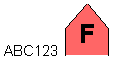
const char fighterId[] = "1.x.2.1.1.2";

TSLAPP6ASymbol theSymbol;

if ( !symbolHelper->getSymbolFromID( fighterId, theSymbol ) )

... // error

theSymbol.hostility( TSLAPP6ASymbol::HostilityHostile );

theSymbol.designation( "ABC123" );

theSymbol.heightType( TSLDimensionUnitsPixels );

theSymbol.height( 100 );

theSymbol.x( 400000000 ); // TMCs

theSymbol.y( 0 );

TSLEntitySet* es = symbolHelper->getSymbolAsEntitySet( &theSymbol );

if ( !es )

... // error

// TSLStandardDataLayer* stdDataLayer;

stdDataLayer->entitySet()->insert( es ); // takes ownership of new set

stdDataLayer->notifyChanged( true );

// draw...
And we get something like this:
Raster Display
Many GIS based applications need to display information in raster format. Some sources of raster data, such as CADRG or ASRP charts, are likely to be embedded within a MapLink Studio map. These forms of raster image are typically processed through MapLink Studio and as such, would be displayed automatically when the map is loaded into a TSLMapDataLayer.
Other examples, such as aerial photography, bathymetric soundings or satellite images[, are more likely to be displayed in addition to the map. These images may be displayed using the]{.mark} TSLRasterDataLayer[. This is instantiated and added to a]{.mark} TSLDrawingSurface[, just like any other Data Layer.]{.mark}
[The]{.mark} TSLRasterDataLayer [has no Coordinate System of its own and does no run-time projection of the raster image. It is therefore imperative that any raster added to a]{.mark} TSLRasterDataLayer [must be in the same Coordinate System as the currently loaded map. For example, a side-scan sonar system outputs a raster in the local UTM zone. This raster could be added into a]{.mark} TSLRasterDataLayer [correctly if it was being displayed on a Drawing Surface containing a map with the same UTM zone.]{.mark}
Adding Rasters
[To add a raster image to the Data Layer, use the method]{.mark} TSLRasterDataLayer::addRaster[. This method takes the unique name of the raster and the coordinates of the bottom left and top right corners of the raster in internal TMC units. An additional boolean flag allows control over whether the raster is pre-loaded or only in memory when it is being rendered. The unique name may be the full pathname of the raster file. Alternatively, the unique name may be the simple filename of the raster file, and a]{.mark} TSLPathList [may be added to the Data Layer to indicate in which directory the file may be found.]{.mark}
Adding Masks
[Many raster images added to a]{.mark} TSLRasterDataLayer [will be projected in some way. Others may contain non-rectangular data or pixels that are unassigned. Such images may have an associated mask in order to hide the appropriate pixels - in effect, make them transparent. A mask is a 1-bit monochrome image that must be the same size as the associated raster image. When a mask is attached to a raster, the only pixels displayed are those whose corresponding mask pixel is set. MapLink Studio automatically creates masks when appropriate and places these alongside or embedded with, the raster image.]{.mark}
[To add a mask to a raster, use]{.mark}
[TSLRasterDataLayer::addMask( rasterName, maskName )]{.mark}
[Again, the names may either be the full pathname or simple filename depending upon whether a]{.mark} TSLPathList [has been attached to the Data Layer.]{.mark}
Raster Pyramids and Supported Formats
[MapLink Studio, and Windows based applications can load raster images in many different formats - see the Deployment section for details of the associated dependencies. MapLink Studio currently outputs images in TIFF, PNG or JPEG format. All these formats can be read on Windows or X11 systems.]{.mark}
[There is one other file format, the Envitia Raster Pyramid. This is a highly optimised form of raster image, which encapsulates reduced resolution images, tiling of high-resolution images and automatic embedding of associated masks. This format is typically output by MapLink Studio, but a simple flat raster may be converted to a Raster Pyramid using the]{.mark} TSLRasterUtilities::rasterToPyramid [method. An associated method,]{.mark} pyramidToRaster[, does the reverse conversion. The image data embedded within the Raster Pyramid is usually in TIFF, PNG or JPEG format.]{.mark}
Loading and Saving Data Layer Contents
Many applications need to display information from an external data source. Others need to make the information they display persistent. Several of the TSLDataLayer derivatives can load and/or save their contents. The exact capabilities vary between Data Layer types.
The TSLMapDataLayer can display a map which has been generated by MapLink Studio. The contents of the map are defined and referenced by a “.map” or “.mpc” file. To load the map into the TSLDataLayer, use the TSLMapDataLayer::loadData method.
The TSLStandardDataLayer can both load and save its contents, either via a file or via an in-memory buffer. To read from or write to a file, use the loadData and saveData methods. Each takes the filename to use. To read from or write to an in-memory buffer, use either loadDataFromBuffer or saveDataToBuffer. The loadDataFromBuffer method should be passed a buffer that the application has created, along with the size of the data that the buffer contains. The saveDataToBuffer method will create a buffer of the appropriate size, populate it with the contents of the Data Layer and return it to the application along with the size. This buffer may then be stored however the application requires, for example into a database. Once the application has finished with the buffer, it should call the deleteBufferData method so that the buffer can be destroyed. Note that the loadDataWithConfig and saveDataWithConfig methods will additionally persist the rendering and feature class list of the Standard Data layer.
The TSLRasterDataLayer is similar to the TSLStandardDataLayer in that it has the same load/save methods via a file or buffer. However, it does not necessarily store its contents directly. Instead, it can either store the meta-data of its contents or the meta-data and its contents. For each raster being displayed, the meta-data contains the filename, its referencing coordinates and the filename of any mask associated with the raster. The ability to save the raster images is only available when saving to a file, not to a buffer.
All of the loadData and loadDataFromBuffer methods will first clear the current contents of the Data Layer. The TSLStandardDataLayer also contains methods to append data to the current contents without clearing them first. These are appendData and appendDataFromBuffer.
Interoperability
Interoperability in this context means the exchange of data between MapLink and other GIS formats. This is most obvious in MapLink Studio but is also available for a limited subset via the run-time Core SDK. The essential steps for importing or exporting are the same regardless of data format.
The steps for importing data are as follows
-
Unlock the required interoperability support using TSLUtilityFunctions::unlockSupport.
-
Create an array of TSLFeatureMapping objects, defining the native features to be imported, and the MapLink featureID that will be stored on them on import. This also defines the Render Level for objects of that feature type.
-
Load the file into a TSLStandardDataLayer using the TSLUtilityFunctions::importData
-
Create an instance of TSLInteropImportSet and add the imported layer to it.
-
Continue this until all related files are added to the import set, in different layers.
-
Create an instance of TSLInteropManager and pass the import set to the postImportProcess method. This method reconstructs any TMF complex primitives that have been encoded in the data - such as Bordered Polygons.
-
The call to postImportProcess will merge the contents of the import set into a new Standard Data Layer and return it for use by the application.
-
Destroy the import set and related Data Layers since they are no longer required.
-
Note that more flexible formats may not require the use of an import set since they are heterogeneous.
The steps for exporting data are as follows
-
Unlock the required interoperability support using TSLUtilityFunctions::unlockSupport.
-
Ensure that all required data is in a single TSLStandardDataLayer.
-
Create an instance of TSLInteropManager and pass the Standard Data Layer to the preExportProcess method. This method deconstructs any TMF complex primitives that exist in the Data Layer - such as Bordered Polygons.
-
The call to preExportProcess will create an instance of a TSLInteropExportSet and return it to the application. This export set may contain multiple Standard Data Layers and filenames.
-
Use TSLUtilityFunctions::exportData to export each Data Layer in the export set.
-
Destroy the export set and related Data Layers since they are no longer required.
The processing that occurs in the TSLInteropManager methods is highly configurable. See the detailed online documentation of TSLInteropConfig for further details.
MapInfo MIF/MID Format
This format is a pair of simple ASCII files, one (MIF) file contains the geometry and meta-data; the other (MID) file contains the attributes for each geometric entity. Like TMF, MIF files can contain a mixture of entity types and it therefore provides a good match. Unless the data to be exchanged contains Bordered Polygons, it may not be necessary to process the data using the Interop Manager.
MIF files can contain rendering information. Since the MapLink and MapInfo styles are different, a mapping between the two sets of styles must be defined. The default mapping is in the “<MAPLINK_HOME>\config\mifinteroperability.ini” file, which should be passed to the TSLUtilityFunctions::importData method. Details of each mapping are defined in comments in the file.
OS MasterMap Format
This format is an XML file based upon GML 2.1.2. Like TMF, OS MasterMap files can contain a mixture of entity types. This format is mainly supported for the Seamless Layer Management of the MasterMap data. It usually does not require processing using the Interop Manager.
For change only update files, a departed feature is identified as a TSLSymbol instance with a featureID of (-255) and the topological ID (TOID) stored in the entityID.
MasterMap files can contain many attributes that may not be of interest. The set of attributes to be imported must be defined. The default mapping is in the “<MAPLINK_HOME>\config\OSMasterMap.ini” file, which should be passed to the TSLUtilityFunctions::importData method. Details of each entry are defined in comments in the file. The TOID, Feature Code, Version and Type attributes are always imported. Note that on Ordnance Survey advice, any primitives with the ‘broken’ attribute set true will be ignored.
-
The TOID may be accessed using TSLEntityBase::entityID.
-
The Feature Code may be accessed using TSLEntityBase::featureID.
-
The Version may be accessed using TSLEntityBase::version.
-
The Type attribute is used to determine which Entity type to create.
ShapeFile Format
This format is a complex binary format (.shp) file, with an associated database (.dbf) file. Every object in the file must be of the same entity type and so a typical TMF file, which is usually heterogeneous, will need processing using the Interop Manager.
OS NTF LandLine Format
This format is a simple ASCII file. The filter does not require a Feature Mapping array and does not import or export attributes. The featureID stored on the Entity is assumed to be the NTF LandLine feature code for import and export.
Attribute Information
Attribute data from directly imported vector data is held on the TSLDataset object on each entity.
Firstly, obtain the TSLEntitySet from the TSLStandardDataLayer that the source data was imported into. This should then be iterated through, checking the entity type, recursing, if necessary, i.e. if the entity is another TSLEntitySet.
Note: For the SHP data format, as it is a flat format, it should only contain entities of a single type, for example a shapefile rivers.shp would only contains lines, a shapefile countries.shp would only contains polygons, etc...
Retrieve the TSLDataSet object from the TSLEntity. The attribute data is held in TSLVariants accessed by keys and fields on the dataset.
At this point it is necessary to have some knowledge of the attributes that you’re expecting to find. For example, the rivers.shp shapefile may contain the following attribute fields:
-
RIVER_
-
RIVER_ID
-
NAME
-
SYSTEM
Note: The shapefile specification does not say what attributes are present or should be present. The attributes could be different in each file.
From the TSLDataSet the number of available keys/fields can be determined and then the keys and/or fields accessed by index using the functions:
-
getAvailableKey
-
getAvailableField
Obviously, for the rivers.shp file above the number of available keys/fields returned would be four.
The keys and fields are returned as TSLSimpleStrings. So, if the contents of the NAME attribute are required, iterate through the TSLDataSet retrieving the Available Fields until a field called NAME is returned. Then retrieve the actual data using one of the getData functions.
The following code snippet retrieves the Name attribute data (i.e. the actual name of the river, e.g. Amazon) and sets it into the entity name property:
// Entity Set off of StandardDataLayer containing imported shp file rivers.shp
if (TSLEntitySet* set = TSLEntitySet::isEntitySet( m_stdDataLayer->entitySet() )
{
int setSize = set->size();
for( int i(0); i < setSize; ++i )
{
// Get each entity in the set
// Ideally the entity type should be checked for Entity Set
// and recursed if found
// In this code sample I know all entities are TSLPolylines
if ( TSLEntity* entity = (*set)[i] )
{
// Retrieve the TSLDataSet from the entity
const TSLDataSet* dataSet = entity->dataSet();
if( dataSet )
{
// Iterate through the available fields
// In the rivers.shp file there are four fields, RIVER_, RIVER_ID,
// NAME & SYSTEM
int dsetNumFields = dataSet->numAvailableFields();
for( int j(0); j < dsetNumFields; ++j )
{
TSLSimpleString fieldName;
dataSet->getAvailableField( j, fieldName );
// In this code sample we are interested in the NAME field
if ( fieldName == "NAME" )
{
// Extract the data from the field
// In this case the name of the river as a string
const TSLVariant *variant = dataSet->getData( fieldName.c_str() );
if( variant )
{
int len = variant->getValueAsString( 0, 0, 0 ) ;
char * buf = new char[ len + 1 ] ;
variant->getValueAsString( buf, len ) ;
// Do something with the data
entity->name( buf );
}
}
}
}
}
}
}
Layer History Management
The core MapLink SDK allows data layers to maintain a version history. Currently, layer history is restricted to map data layers that contain Seamless Detail Layers. Using the ‘publish and archive’ features of the Seamless Layer Manager, it is possible to capture the history of changes applied to the map. It is then possible to rollback the map to any point in time using the new data layer ‘flashback’ mechanism. It is also possible to query the data layer for the version history of any extent within the layer.
The following shows the typical steps required in order to create and maintain a map layer with history information (error handling is omitted for brevity):
TSLSeamlessLayerManager* slm = ...;
slm->enablePublishing( true, dir ); // Publishing must be enabled
slm->initialiseExistingLayerForIngest( mapPath, layerName );
TSLStandardDataLayer* layer = ...;
// Load the map data into 'layer'
TSLUtilityFunctions::importData( layer, ... );
// Import the layer into the seamless layer manager
slm->ingestData( layer );
// Finish the import process
slm->finalise();
TSLTimeType timestamp;
_time64( ×tamp ); // The timestamp to attach to this version
// Query the map's history
TSLVersionHistorySet const* history = map->versionHistory();
// Get the version number that will be used when the next archive
// is created.
TSLHistoryVersion version = history->getCurrentArchiveVersion();
// We store the archives in a hierarchical tree based on the
// version number e.g. <rootArchiveDir>\1\, <rootArchiveDir>\2\,
// <rootArchiveDir>\3\, etc. where <rootArchiveDir> is the root
// directory that contains the archives for the layer e.g.
// 'c:\MyMap\archives\LayerA'.
char buffer[16] = { '\0' };
sprintf( buffer, "%d", version );
string archiveDir = rootArchiveDir;
archiveDir += buffer;
// The manager will automatically increment the archive version
// number that is to be used for the next archive
slm->publishAndArchive( archiveDir.c_str(), timestamp );
slm->enablePublishing( false ); // Finished publishing
Filter Data Layers
The MapLink Filter Data Layer provides a simpler interface than the interoperability described earlier in this section and is intended to be intuitive to users familiar with MapLink Studio. Currently the Filter Data Layer only supports two input formats; NITF and raster images. A user should create a Filter Data Layer for each data file that they intend to display at the same time. In MapLink Studio a user would organise their data files into datasets and layers, but it is intended that mimicking the organisation of layers should be handled by the application.
The other main difference compared to MapLink Studio is the concept of ‘Display Items’ which were introduced to better support the loading of NITF data. A display item is a sub-object within the data file, be it a raster or vector item. When loading raster data, only one Display Item will exist, while a NITF file may contain hundreds.
The steps needed to use the basic functionality of the Filter Data Layer are as follows
-
Create the required TSLFilterDataLayer derivative
-
Unlock the data format, if required, using the unlockSupport function.
-
Set the temporary directories used to store intermediate files using the setDirectories function if required.
-
Load the data file
-
Set the output coordinate system and/or linear transform on the layer if required
-
Set the input coordinate system and/or geo-location on each display item. These can be retrieved by querying the layer using the getDisplayItemAt function.
-
Add the layer to a drawing surface for display
The loaded data can be saved to file in a standard format by querying the Display Item for the internal MapLink Data Layer they represent. A Display Item containing raster data will return a TSLRasterDataLayer and a vector Display Item, a TSLStandardDataLayer.
The following is an example of using this layer:
    // Load tsltransforms.dat this only needs to be done once at application
// startup.
    TSLCoordinateSystem::loadCoordinateSystems();
    // Create a Filter Data Layer which uses the GeoTIFF Filter
    m_filterDataLayer = new TSLRasterFilterDataLayer(TSLFilterTypeGeoTIFF,
"GeoTIFFFilter");
    // Raster processing options these are the same as you find in MapLink Studio
    m_filterDataLayer->rasterSplitThreshold( 256 );
    m_filterDataLayer->rasterPyramidOptions(TSLRasterInterpolationBilinear, false,
 TSLRasterTypePNG, 2);
    // Tell the layer how many threads you want to use when re-projecting the
// raster.
    m_filterDataLayer->setRasterThreadingOptions(0, 0);
    // You can reduce the resultant image to 8 bit with 256 colours by
// uncommenting this line
    //m_filterDataLayer->rasterOptions(24, 256);
    // Set the Output coordinate transform
    // This matches the Natural Earth World map that is shipped with MapLink.
    const TSLCoordinateSystem *dynArcCS =
TSLCoordinateSystem::findByName( "Dynamic ARC Grid" );
    TSLCoordinateSystem *outputCS = dynArcCS->clone( 1000 );
    outputCS->setTMCperMU( 50.0 );
    m_filterDataLayer->setCoordinateSystem( outputCS );
    // Load the data.
    m_filterDataLayer->loadData(pathToGeoTiff.c_str());
    // Query the first display item - note there could be more than one.
    TSLFilterDataLayerDisplayItem *displayItem =
m_filterDataLayer->getDisplayItemAt( 0 );
    // You should set any additional processing options at this stage.
    //
    // This could be what the input coordinate system is or the geo-location.
    // In the case of the GeoTIFF filter this is not necessary.
    //
    // rasterItem->setInputCoordinateSystem( inputCS );
    // rasterItem->setGeolocation( 0.0, 0.0, 700000.0, 1300000.0 );
    // Process the layer... if you do not call this the layer will be processed on
    // first draw.
    m_filterDataLayer->process();
    // Save the processed data so we can load it rather than re-process.
    //   - you need to know if it is vector or raster on reload so that you can
    //     create either a TSLStandardDataLayer or TSLRasterDataLayer
    displayItem->saveDataLayer(locationToSaveProcessedDataTo.c_str(),
TSL_MAPLINK_DEFAULT_VERSION, TSLRasterTypePNG, 2);
    // Add the layer to a drawing surface
    m_surface->addDataLayer( m_filterDataLayer, "filterlayer");
The processing of large amounts of raster data can take some time, it is therefore recommended that the processing takes place in a background thread. If you take this approach do not add the layer to a drawing surface until after the processing has been completed. The layer must be owned by the thread which owns the drawing surface.
We would recommend that you only process one layer at a time in a background thread.
Web Map Service Data Layer
The MapLink Web Map Service Data Layer is a Data Layer that allows efficient loading of Open Geospatial Consortium (OGC) standardised Web Map Servers (WMS). The layer currently supports the loading of raster data from remote WMSs that implement version 1.1.1 of the standard, although future MapLink releases may support further versions.
Although setting up the layer is similar to the use of other MapLink Data Layers, due to the use of a multi-threaded file loader, issues surrounding thread safety may need to be taken into consideration. The MapLink C++ API tries to ensure this safety using const methods so that the user can modify variables that may break thread safety only when permitted. The .NET APIs follow similar rules but enforce them by returning failures from methods that may not be called if they break the thread safety. Refer to the API documentation for more information on these methods.
To setup the layer the user must provide an implementation of a callback class which is polled whenever the layer needs additional information. Each of the methods in this callback class provides sufficient parameters for the user to modify the layer details and will always occur in a thread safe manner. Settings should not be changed when the process is not currently executing one of the callback methods.
The layer also supports the use of layer dimensions and styles along with all the other service parameters supported by the WMS standard. The only part of the standard that is not supported by the MapLink WMS Data Layer is the use of the optional GetFeatureInfo request.
A good starting point when developing using the WMS Data Layer is to refer to the WMSClientSample supplied with MapLink. It demonstrates how to use the WMS in a thread safe manner and permits the setting of WMS dimension and style settings.
There are certain limitations with its use in conjunction with MapLink 3D drawing surfaces due to the coordinate system support.
Military Symbology
MIL-STD-2525D and APP-6D are supported via the Military Symbology API